The AMPER RKS panel – regional sales managers plan their team's visits and see whether the plan is carried out
The RKS panel for regional sales managers: today's decisions, the team's visit plan on a calendar and a map, plan tracking and AMPER AI. On the phone too.
Monday, 7:40 a.m. A regional sales manager calls the first sales rep to ask whether they saw every customer on Friday. Then the second one, who is on sick leave, because someone has to take over their visits. The third doesn’t pick up.
Meanwhile, somewhere in the region, a shop hasn’t ordered anything for two months. Nobody knows, because nobody has visited it.
That manager is who we built the RKS panel for – the regional sales manager panel in AMPER (RKS is the Polish abbreviation for regional sales manager). In one place they see what needs their decision today, plan the team’s visits on a calendar and a map, check whether the plan is carried out, and know every customer in their region.
In short
- The day starts with a “To decide” list. Absences, visits that did not take place and days with no plan are on the first screen.
- Visits where they make sense. The panel lists the customers to visit this week, each with a reason: stopped buying, sales dropped, or the visit is due.
- The plan on a calendar and a map. The manager plans and moves the team’s visits and, before saving, sees exactly what will reach the sales rep’s phone.
- Plan tracking without phone calls. What took place, what is missing and who changed the plan.
- AMPER AI at hand. The assistant prepares the manager for a 1:1 and for a customer visit, and proposes a plan the manager approves.
1. The start of the day: what needs a decision
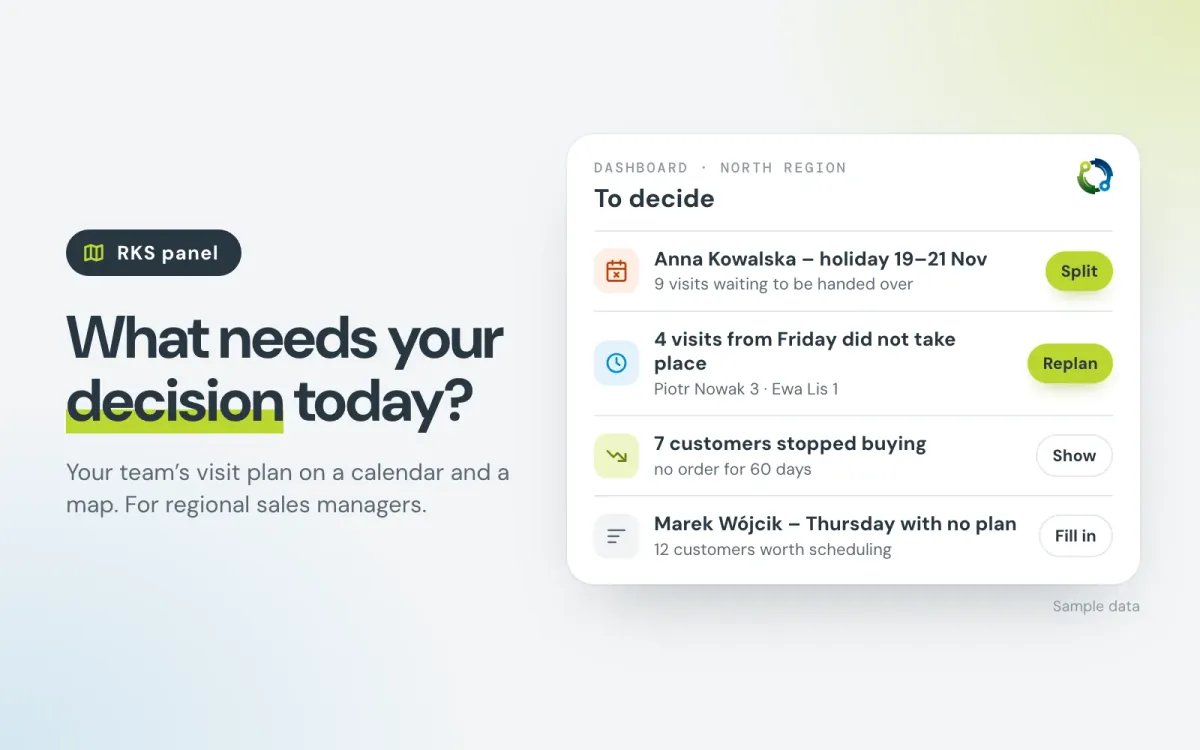
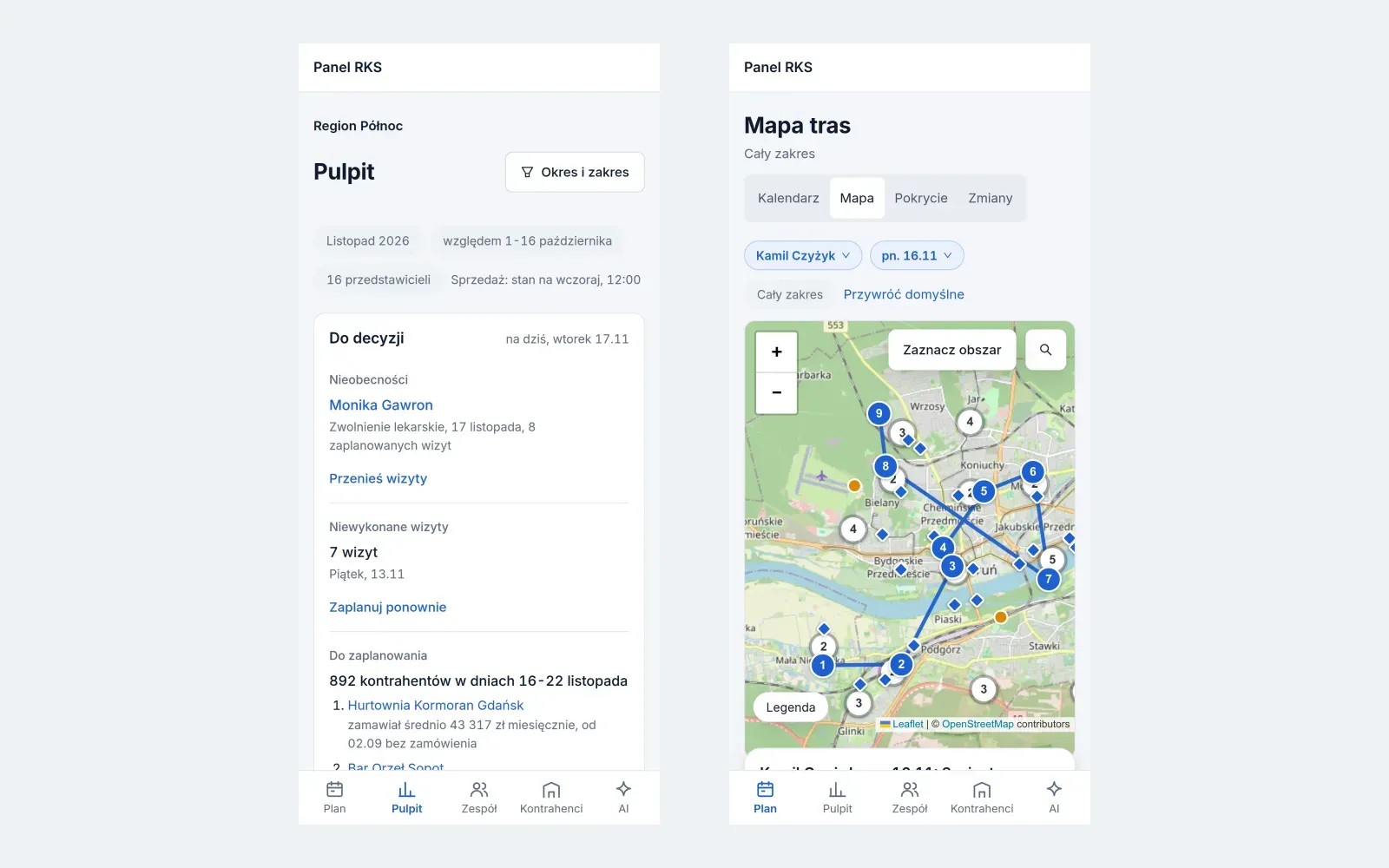
The region dashboard opens with the “To decide” list: who is absent in the coming days and what happens to their visits, which visits from the last working day did not take place, who has days with no plan and who is worth scheduling. For an absence, the manager splits the visits right away among the people who serve the same customer, with the nearest free hour suggested.
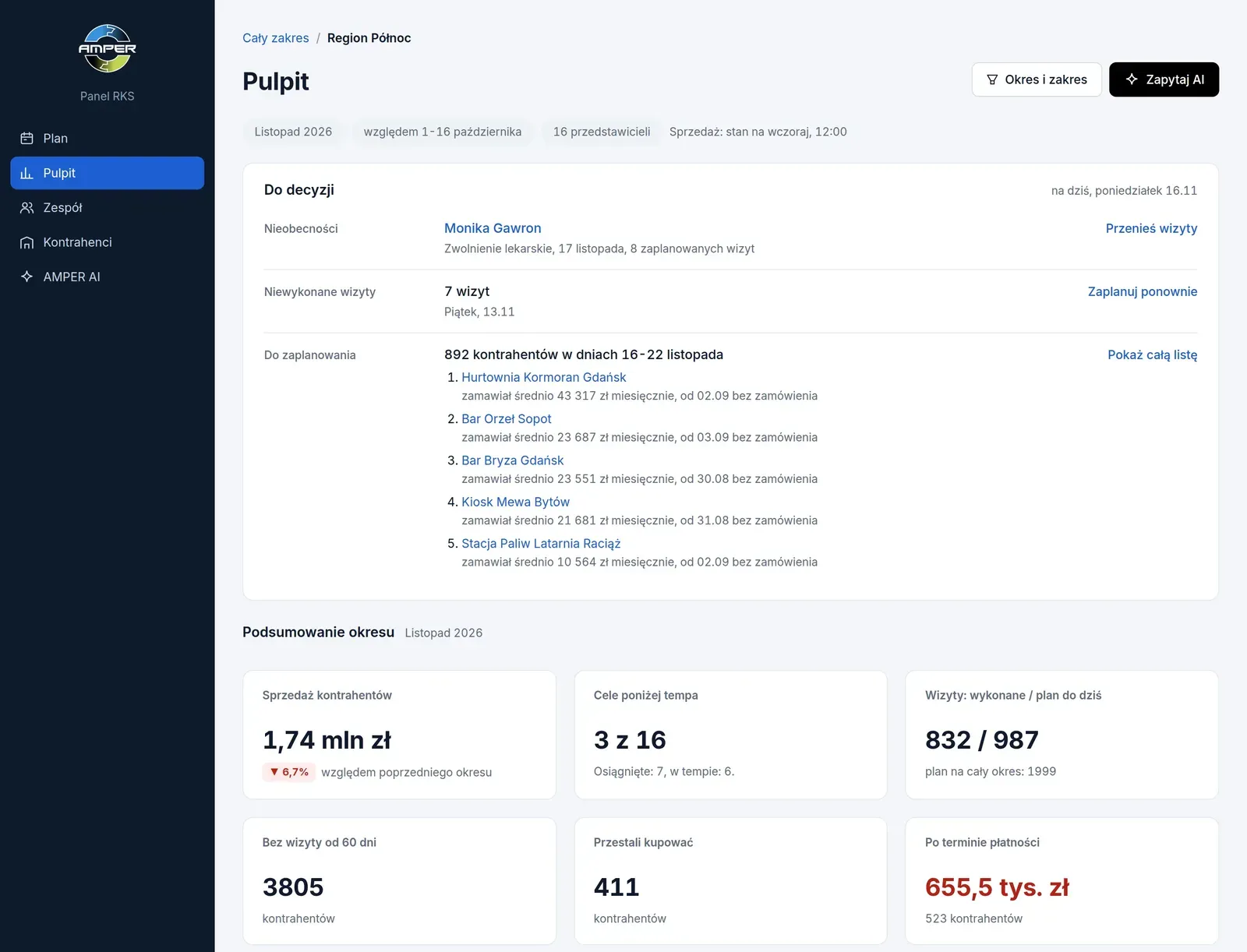
Below are the results of the region and its branches, and the team table lists every sales rep: their customers’ sales, visits against the plan, overdue amounts and progress towards targets. A sales rep’s card brings together their target for the month, a calendar of visits from recent weeks, and their visit notes and surveys.
2. Who to visit this week
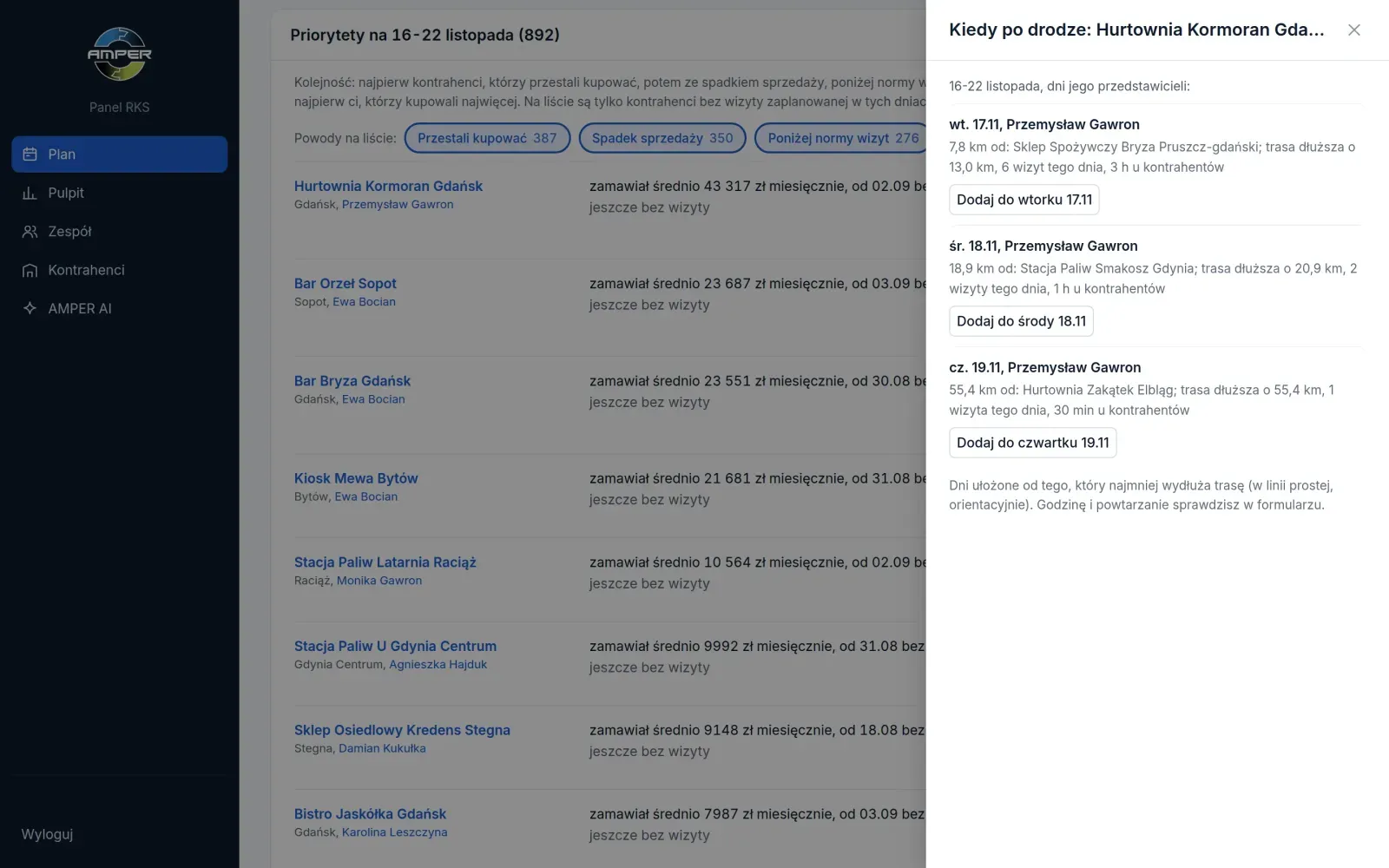
The priority queue lists customers with no visit planned. Each one has a reason:
- stopped buying,
- sales dropped compared with the previous 90 days,
- the visit norm is due – how often the company wants customers of a given category to be visited.
Customers who simply haven’t had a visit for a long time can be added with a filter when the manager wants them. For every customer, “When is it on the way?” suggests the day on which a visit adds the least to their sales rep’s route. The visit is added with one click.
3. The visit plan on a calendar and a map
The calendar shows the whole team’s plan for the week, with customers worth adding next to it. The day view shows several people side by side, hour by hour: what already took place, what is still waiting and which visits overlap.
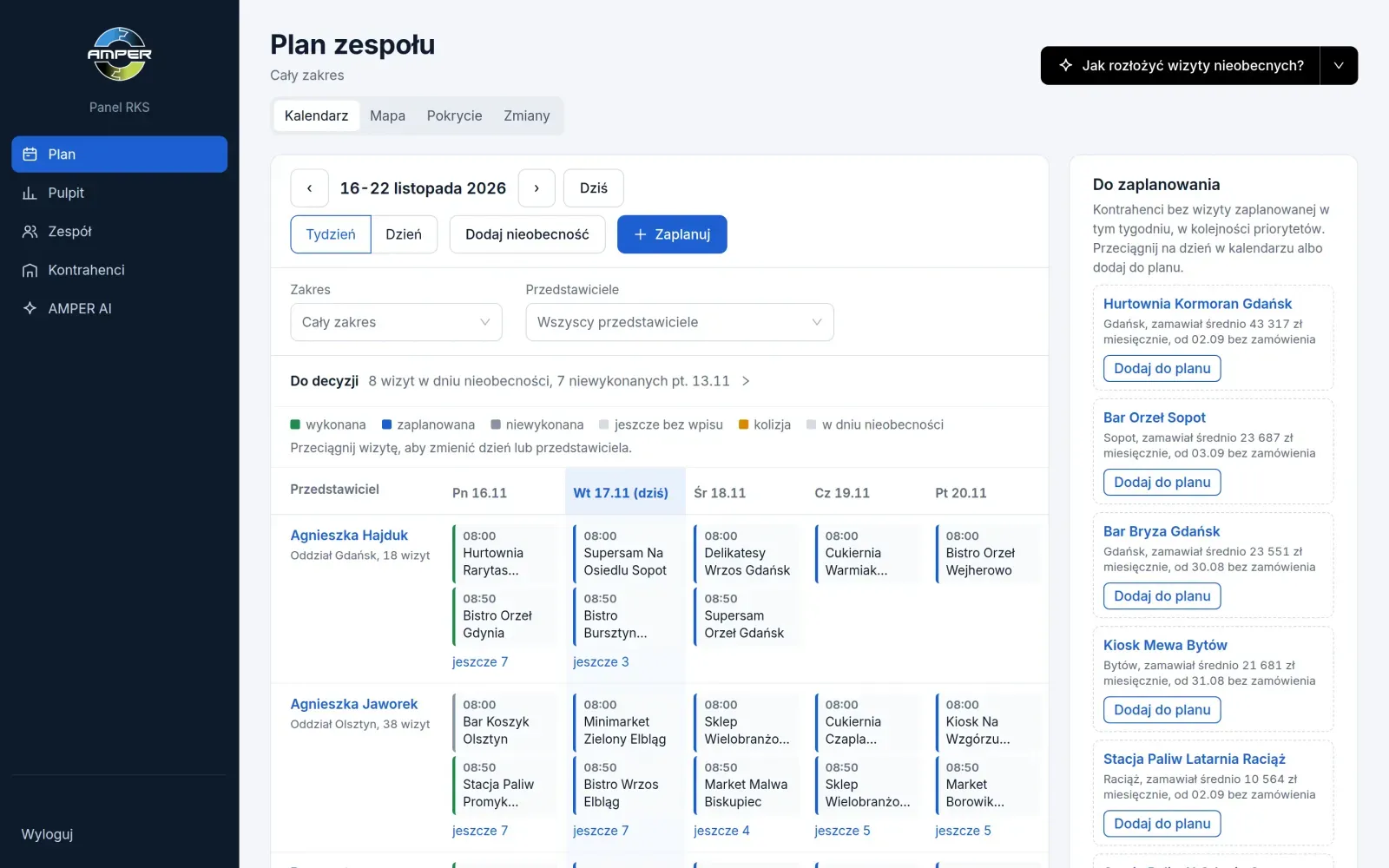
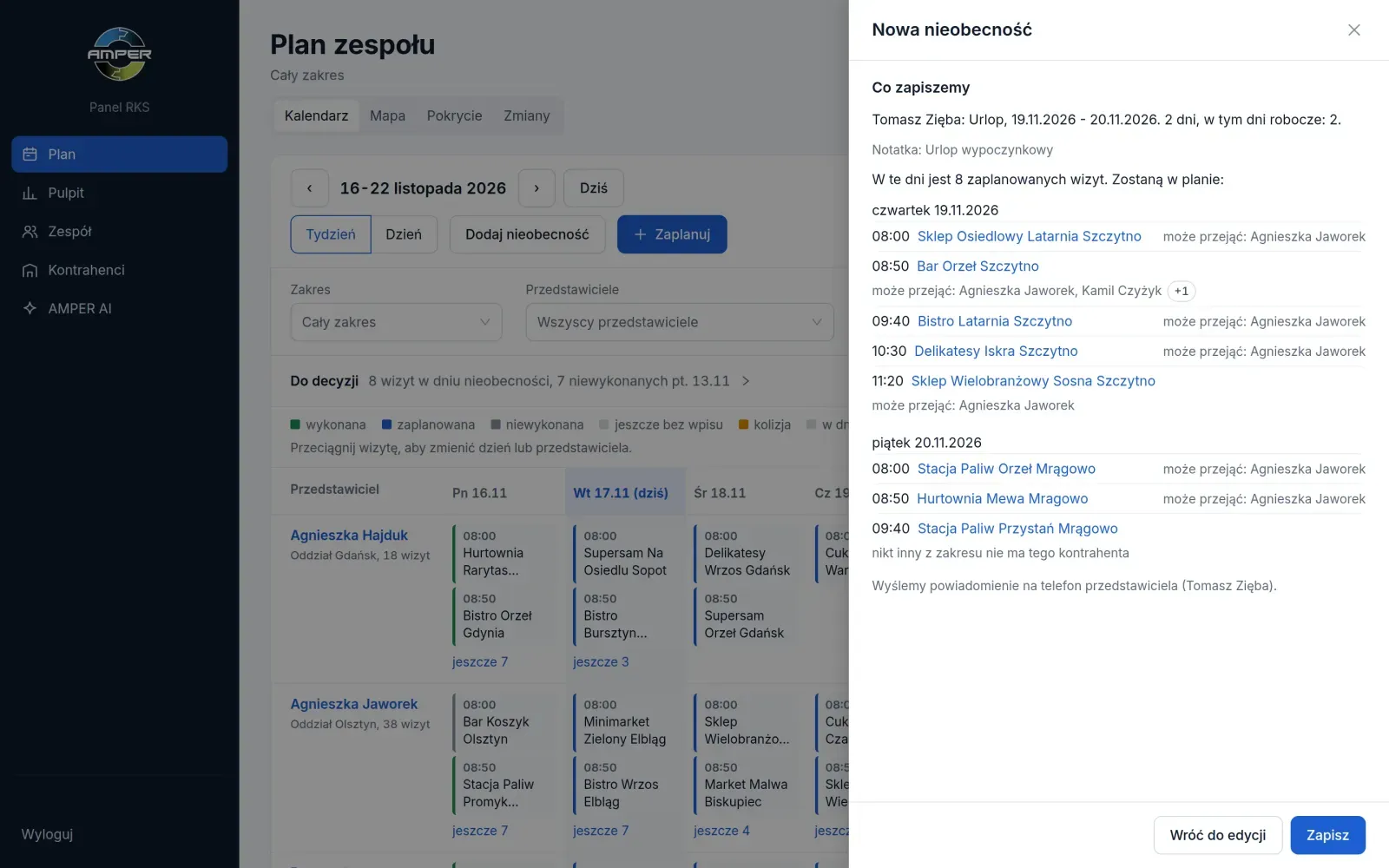
The manager plans a single visit or a recurring route, hands a visit over to another sales rep and enters a holiday or sick leave. Before every save they see exactly what will change, and for an absence also which visits fall on those days and who can take them over. Planned visits reach the sales rep’s calendar in AMPER MOBILE, and when the manager changes the plan the sales rep gets a notification in the app.
On the route map, the manager picks a sales rep and a day and sees the visits in order, plus customers along the way that can be added to the day with one click. The week view shows routes in the colours of the days, with kilometres. A part of the map can be selected and its customers taken straight to planning.
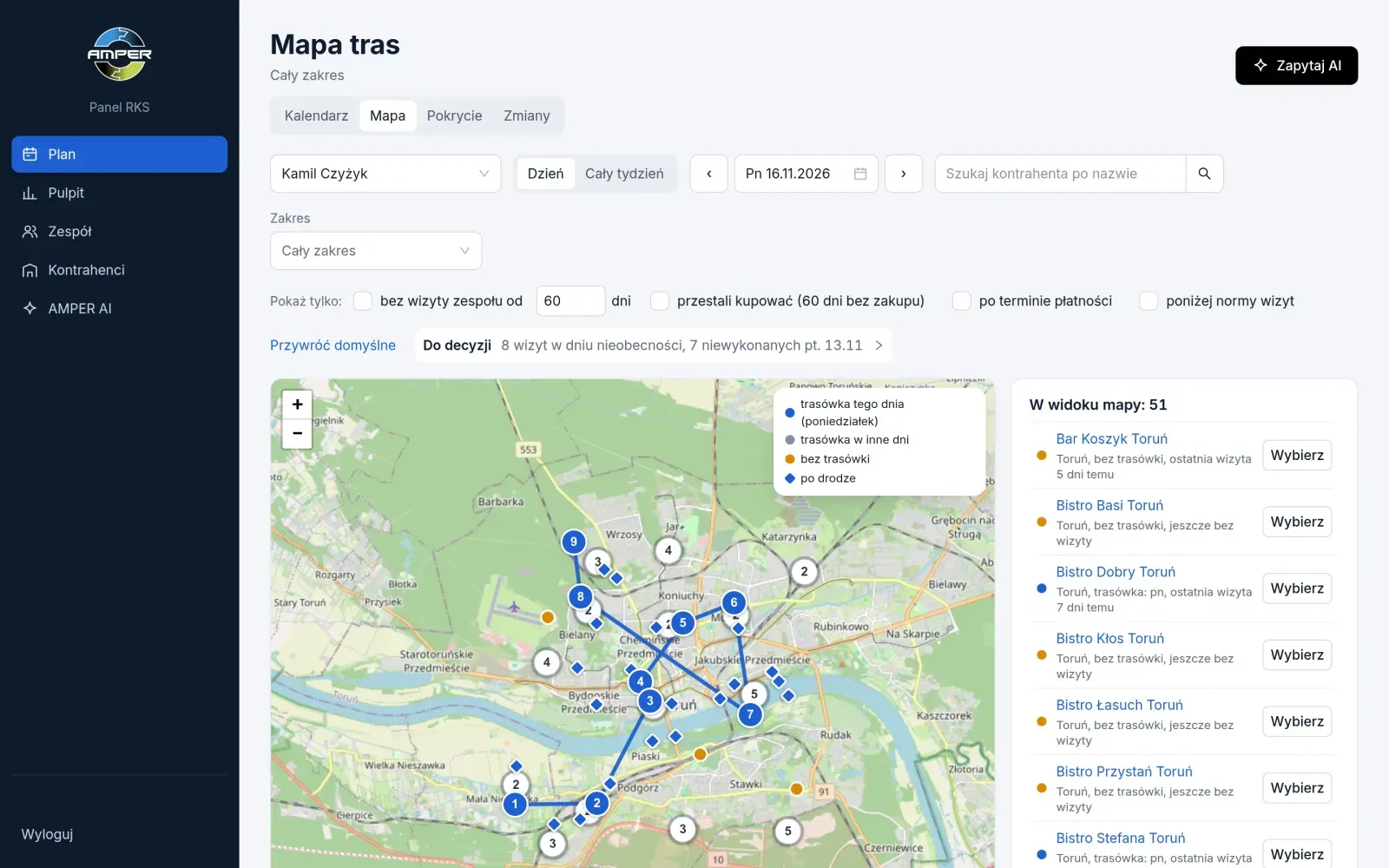
A customer with no location in the records appears where sales reps opened visits there, clearly marked as an approximate location. The manager can point to the right place or drag the pin.
4. Plan tracking
- Plan coverage: how many customers have no route, how many nobody has visited for 60 days and how many are below the visit norm.
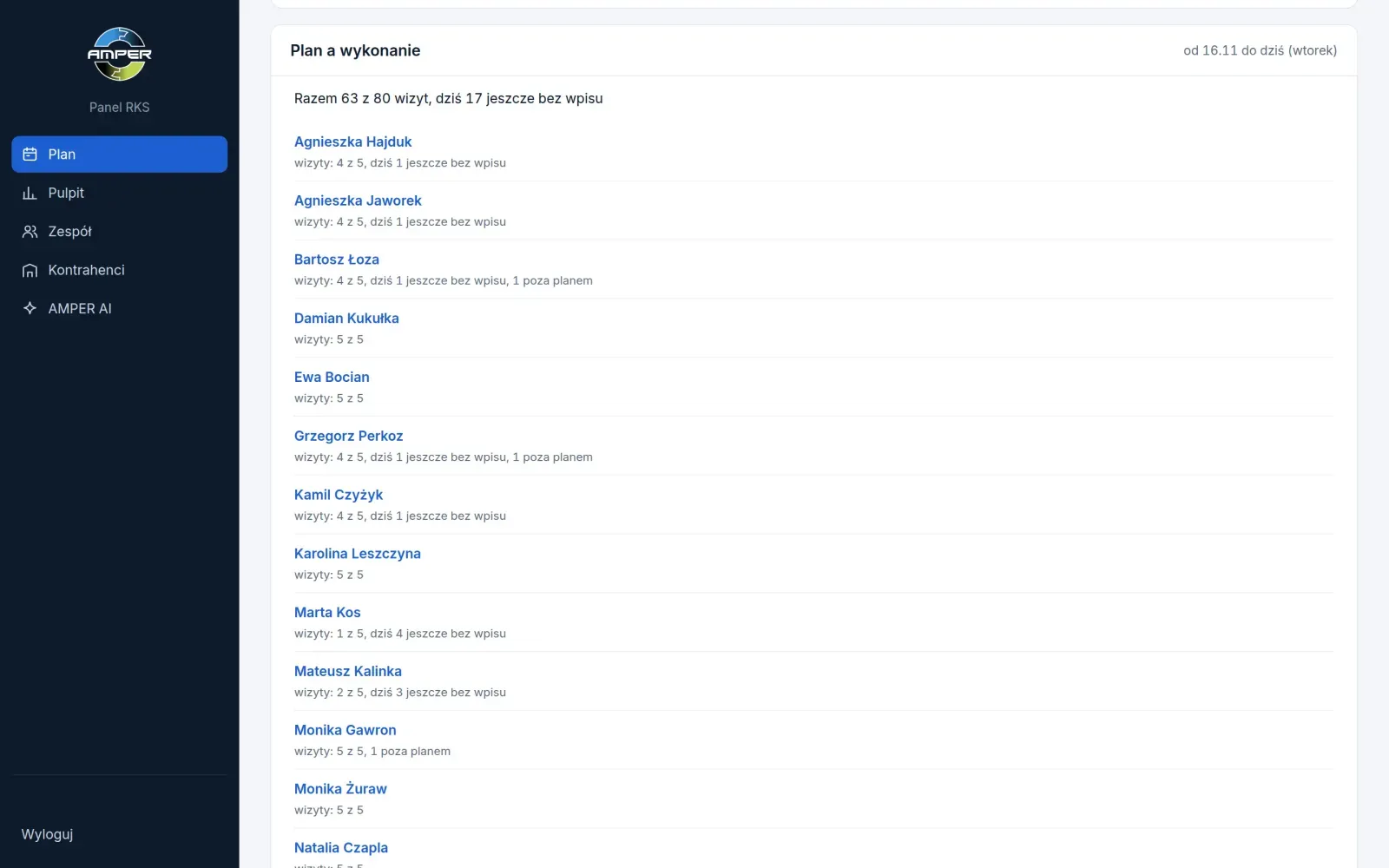
- This week’s progress: for every person, how many planned visits took place, how many are still waiting to be recorded and how many were outside the plan.
- Plan vs. actual: a comparison for a chosen period, with a list of visits that did not take place.
- Plan changes: who changed a sales rep’s plan, when and from where, including changes approved in AMPER AI.
5. Everything about a customer in one place
The list of the region’s customers shows their sales reps, last visit, route, visit norm and overdue amount. Filters combine, and a sentence above the list says how many customers meet them, e.g. “stopped buying” and “overdue payments”.
The customer card is one timeline of invoices, orders (including those from the B2B online store), visits and notes, next to receivables, sales compared with the previous 90 days, and settlements with the number of days overdue. Before a conversation about payments, the manager has everything on one screen.
For surveys, the manager sees how many customers a survey applies to, where it is already filled in and where it isn’t yet, with the reason. Visits with the survey are planned straight from that list.
6. AMPER AI in the panel
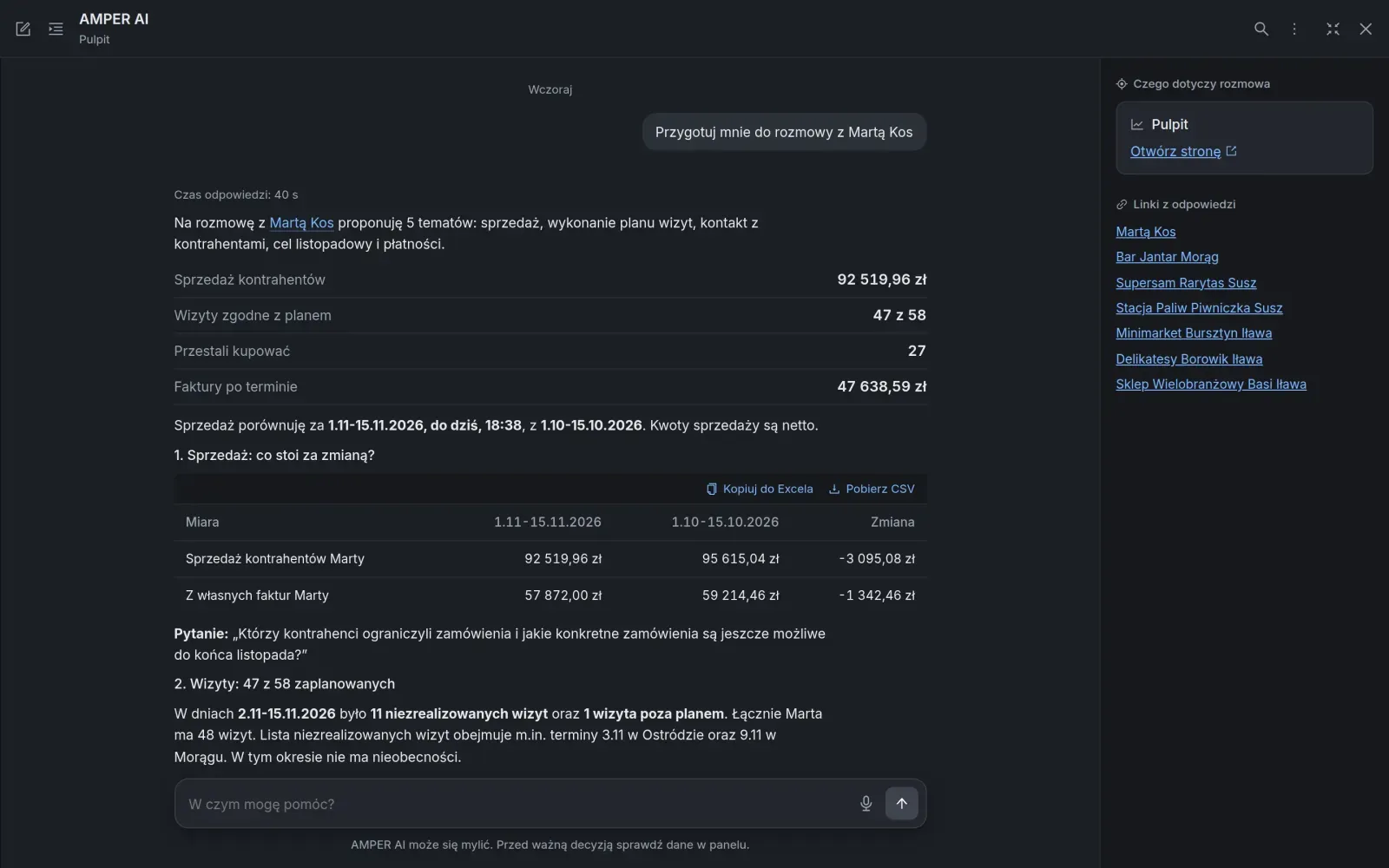
AMPER AI sits next to every screen, with ready-made tasks that fit what the manager is looking at:
- 1:1 conversation: topics with figures, customers to discuss and questions to ask the sales rep.
- Key facts about a customer before a call or a visit: overdue payments, sales, recent visits and notes.
- A plan from AMPER AI: proposed visits to customers below the visit norm, approved with one card.
- Handing over an absent person’s visits: to whom and at what time, each change approved or cancelled separately.
- An e-mail to a sales rep with a list of customers to visit, sent only after the manager agrees.
The assistant answers within the manager’s scope and changes the plan only after approval.
7. On the phone too
Every screen of the panel works on a phone, with a layout made for a small screen. A bottom bar leads to the dashboard, the plan, the team, customers and AMPER AI, so a manager in the field can hand over an absent person’s visits, plan a visit or check the day’s route without opening a laptop.
What this means for your company
- Fewer check-up calls. The manager sees the state of the plan in the panel instead of asking every person.
- Visits to customers who need them. The priority queue points to those who stopped buying or buy less, not only to those who are closest.
- A plan that gets carried out. Absences and missed visits get a decision on the same day.
- One picture of the region. Sales, receivables, visits and notes on the same data the team uses in AMPER MOBILE.
Good to know
- A manager sees only their region. An administrator builds the company structure (regions, branches, teams), assigns managers and sets visit norms. A manager can’t open the card of a customer from another region, even from a direct link.
- Figures, not ratings. The panel shows figures and differences. It doesn’t rate sales reps or rank them.
- The company switches on the sales reps’ working day itself. The view of visit times and the places where visits were opened is off by default. An administrator switches it on after the company’s own legal review and after informing the sales reps. The list of visits with their hours is always available.
- Distances are approximate. The panel measures them in a straight line. It only suggests the order of the day’s visits and doesn’t change agreed times. The map comes from OpenStreetMap.
Summary
The RKS panel brings together in one place what a regional manager looks for today in phone calls, spreadsheets and after-the-fact reports: who is absent, who needs a visit, whether the plan is carried out and what is happening with every customer. The manager makes the decisions; the panel and AMPER AI prepare them so they take a minute, not a morning.
Already using AMPER and want to see the RKS panel on your own data? Write to support@ampliapps.com or call +48 85 6000 263. New to AMPER? Book a demo – we’ll show the RKS panel together with the AMPER MOBILE app.